The AI Scheduler now optimises your entire calendar
Your dispatcher already knows which technician a site expects, when it's open, and who isn't allowed on it. The AI Scheduler applies all of it to every job in the build — best time of day, preferred technician, restricted technicians, an efficient route — and hands back a complete draft calendar for approval.

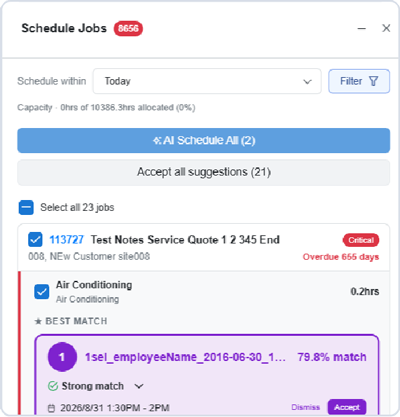
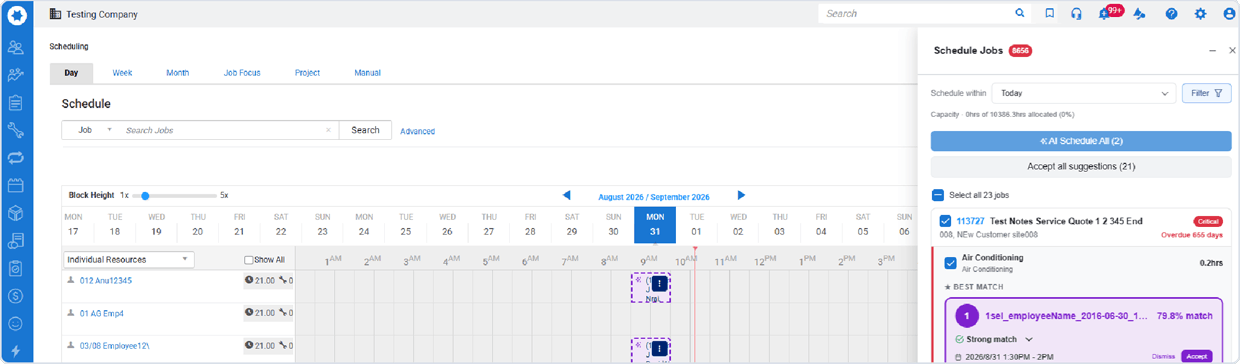
Ranked jobs, best-match technicians with a confidence score, and Accept / Dismiss beside the live schedule. Every row is a proposal, not a change.
How the AI builds every suggestion

The right technician
Role, skills, licenses, cost center eligibility and zone are checked on every job, not spot-checked. An expired license never becomes a return visit you can't bill.

The right time of day
No one has time to check open hours, closed days, date exceptions and access windows job by job. Every proposal respects them anyway, in the site's own time zone.

Site and customer preferences
The account knowledge your team has built reaches every job, not just the ones someone had time to think about: preferred technicians favored, prior visits counted, restricted technicians never proposed.

An optimised route, not a job list
Every technician's day is sequenced by real travel distance around the timeblocks already on their calendar, turning paid drive time back into billable hours.

Nothing urgent slips
Breached response times and overdue jobs rise to the top automatically. A job that can't make its deadline is flagged while you can still act on it, not discovered later as a credit.

You stay in charge
Nothing is committed until you approve it. Lock a job, technician, date or time and the AI leaves it alone; multi-day work splits itself across days. It takes the pass nobody has time for, not the decisions only a dispatcher can make.
No silent failures
Every job the AI can't schedule stays on screen with a plain reason: no eligible technician, site closed, no capacity in the window, missing duration, lock conflict. Your dispatcher spends the morning making decisions, not reconstructing why something didn't happen.
How it works

Filter your scope
The AI works across every matching job in the build — not just the ones on screen.

It ranks and estimates
Urgency first, then real remaining hours from your existing estimates, so days fill to actual capacity.

You review the draft
Change the technician, date or time on any suggestion before you accept it.

Approve and commit
Everything is revalidated at approval, so nothing lands on a conflict.
Scope & Personalisation
Everydispatcher schedules their own slice of the board
The panel is filtered, not fixed. A dispatcher sets the scope that matches how they actually work — their trades, their region, their accounts — and the AI schedules inside it. Two dispatchers can work the same build at once without colliding, each covering more board than either could alone.
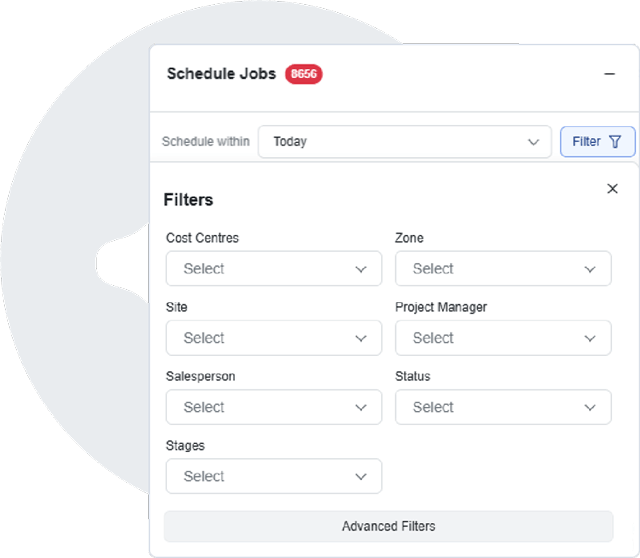
Filter Options in the Schedule Jobs panel.
Save a set once and it becomes that dispatcher's working view.
Filter by
Cost Centre
Schedule one line of business at a time — HVAC, electrical, plumbing, maintenance contracts. The dispatcher who owns that trade sees only that backlog, and its labor stays costed to the work that earned it.
Zone
Keep a region's work with the crews who cover it, so route optimization tightens real days and travel cost stays inside the territory.
Customer & site
Run a key account or a portfolio of sites on its own pass, in the order that account expects, so your largest contracts get scheduled deliberately.
Response time
Work an SLA tier deliberately: pull up the contracted response windows closest to breach and clear them before a missed window becomes a credit.
The filter is the scope — not the screen
The AI ranks every job matching the filter, then shows the highest-priority 50. Nobody reaches page 8 of a 400-job backlog, and that was never about effort — now the critical job sitting there surfaces first. Approve-all only ever applies to the batch on screen, with the count shown.
Saved views, per dispatcher
Save the combination once and reuse it every morning, with no board to rebuild before the work starts. A saved view and an ad-hoc filter behave identically, so what a dispatcher sees is always what the AI schedules.
It reads the rules already in your build
Set it once on the site. The AI honors it on every job, not just the ones someone remembers.
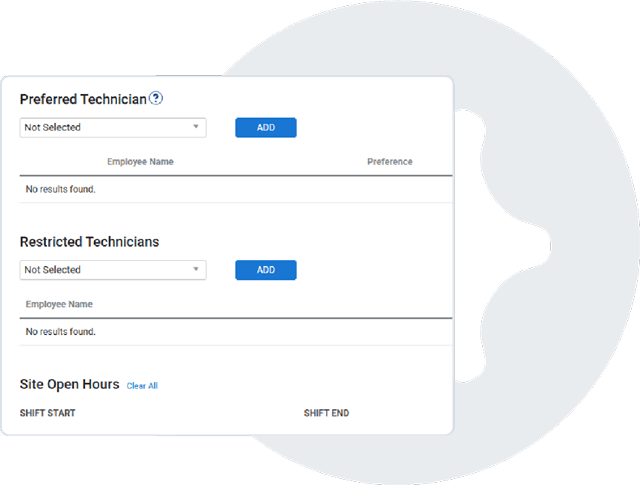
Preferred Technician
The technician this site or customer expects to see is favoured in the match — by asset type and service level.
Restricted Technicians
Anyone barred from the site is never proposed for it. It's a hard rule, not a preference the AI can trade away.
Site Open Hours
Shifts, closed days and date exceptions define when work can land — no proposal ever falls outside them.
Required Skills & Licences
A site that demands a licence only gets technicians who hold it, and hold it current.
Let Simpro AI Scheduler
schedule your next job
